
Interface · Installation times
Bürgerle installation times in your calculation
You get the installation times from Bürgerle – as a DATANORM file for your wholesaler's range. KraftHub imports them at that supplier, matches every time to your catalogue by article number and prices it with your labour rate – in quotes and in tenders.
Official partnership

KraftHub is the first AI software in an official partnership with Bürgerle Montagezeiten.
montagezeiten.deHow the Bürgerle time becomes your installation time
Two factors fit the time to your business: one per wholesaler, one per project. Every project can deviate from the project factor.
Bürgerle time
12 min
Supplier factor
1.1
Project factor
1.5refurbishment
Installation time
19.8 min
at €58.00 per hour ≈ €19.14 labour
What you need
- A KraftHub account with access to the settings
- The installation-time file from Bürgerle for your wholesaler's range (ZIP or DATANORM.950 / .999)
- Your wholesaler as a supplier in KraftHub
- A labour article in hours or minutes
- Recommended: the same wholesaler's DATANORM catalogue
Installation times for your range
Bürgerle's shop sells installation times for the ranges of manufacturers and wholesalers – among them these:
Go to the Bürgerle shop



Guide
Imported in five steps
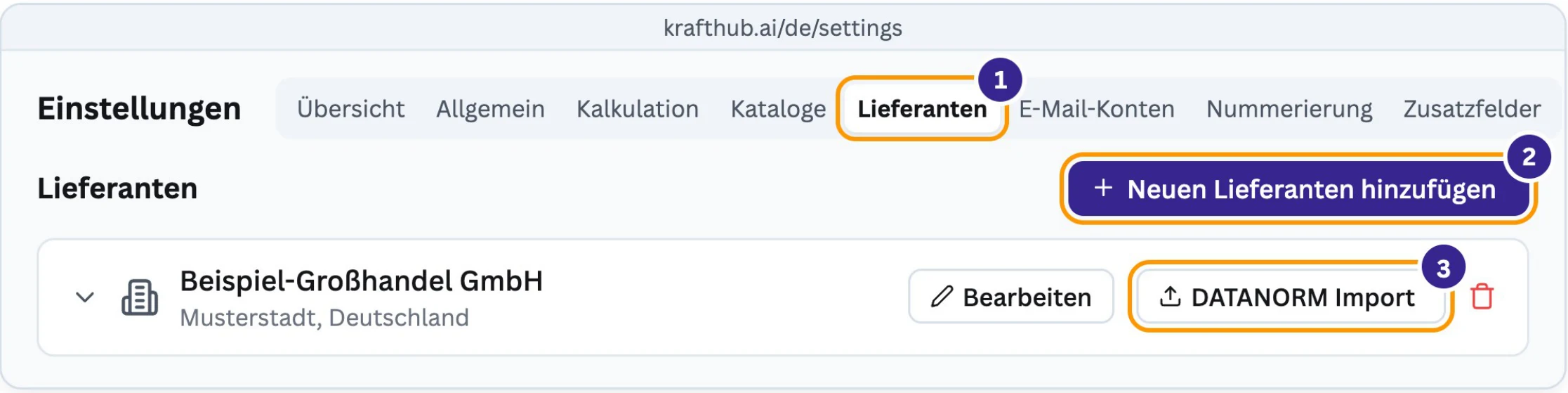
Open the import at the supplier
- Open “Einstellungen” (Settings) and choose the “Lieferanten” (Suppliers) tab.
- If your wholesaler is missing, add it with “Neuen Lieferanten hinzufügen”.
- Click “DATANORM Import” at the supplier. The import opens in a new tab with the supplier already selected.
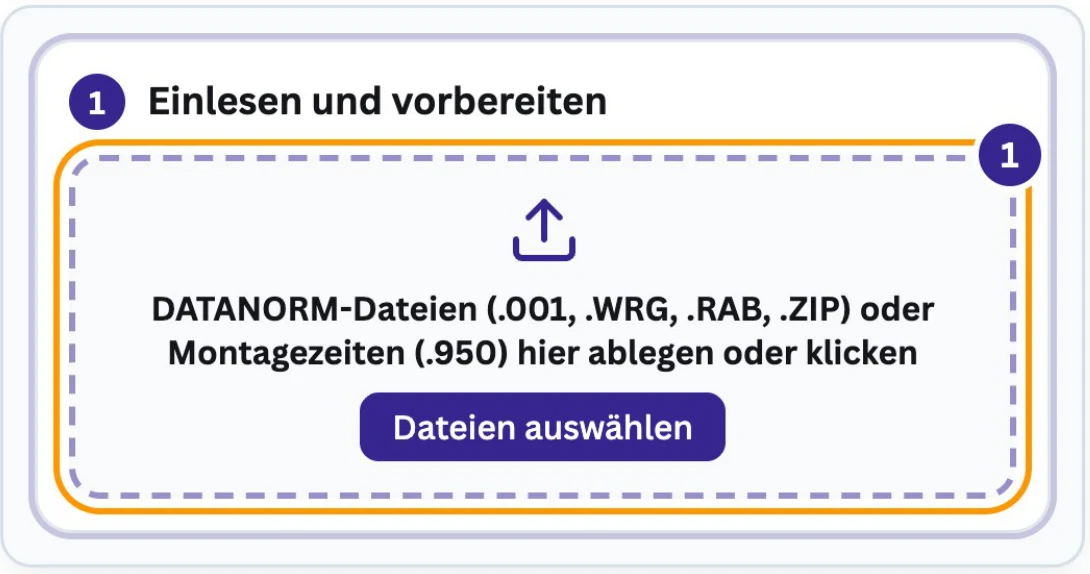
Drop the installation-time file
- Drag the file from Bürgerle into the field under “Einlesen und vorbereiten” or click “Dateien auswählen”. No need to unzip or rename anything.
- KraftHub recognises from the content that these are installation times. The title then changes to “Montagezeiten-Import”.
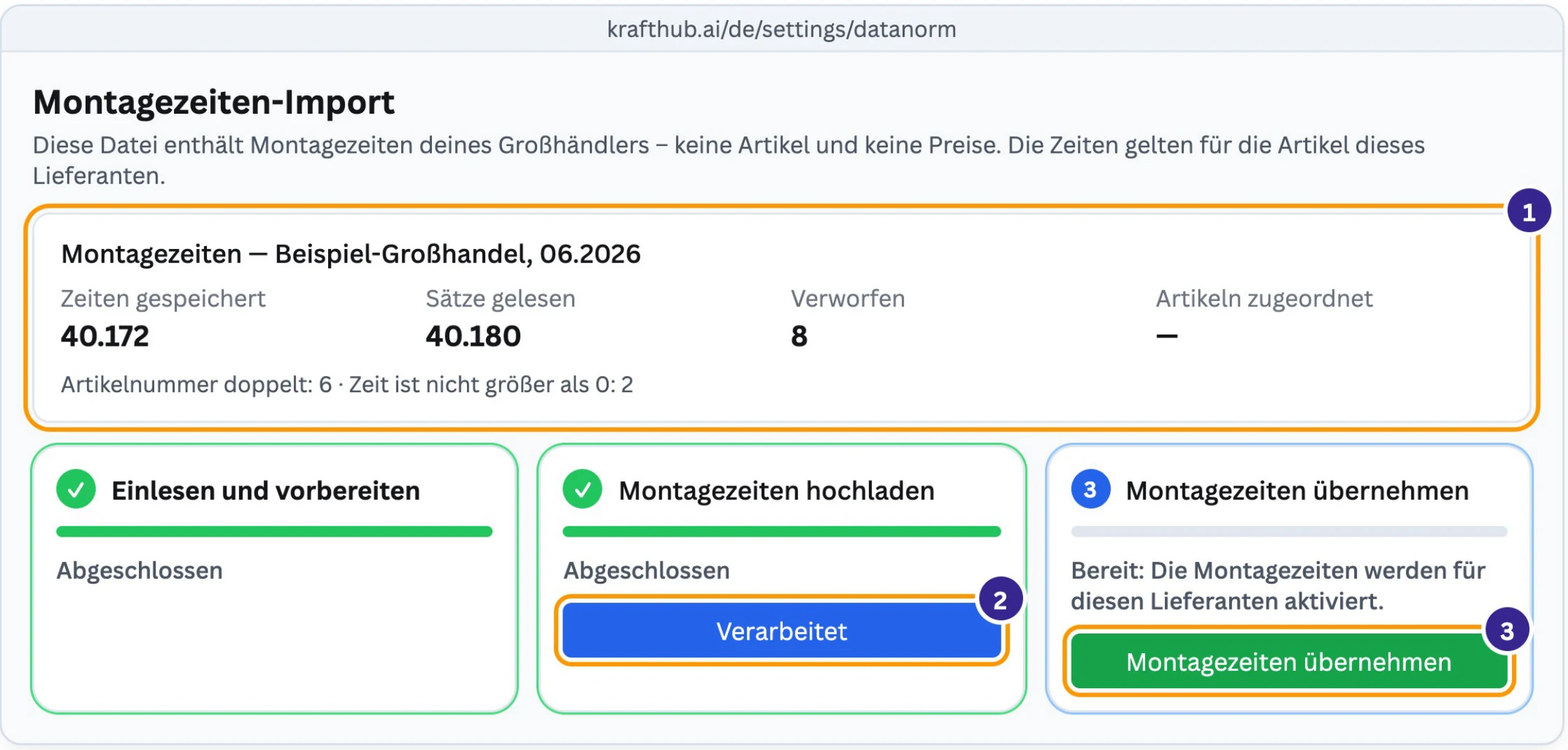
Upload and activate
- Check the overview: wholesaler and delivery date are in the heading.
- Under “Montagezeiten hochladen”, click “Datei verarbeiten” (it then reads “Verarbeitet”).
- Click “Montagezeiten übernehmen”. The message “Montagezeiten aktiviert.” confirms the import. Keep the page open until then.
- Sätze gelesen
- – all time records in the file
- Zeiten gespeichert
- – valid times KraftHub takes over
- Verworfen
- – faulty records, with the reason below
- Artikeln zugeordnet
- – times with an article in your catalogue
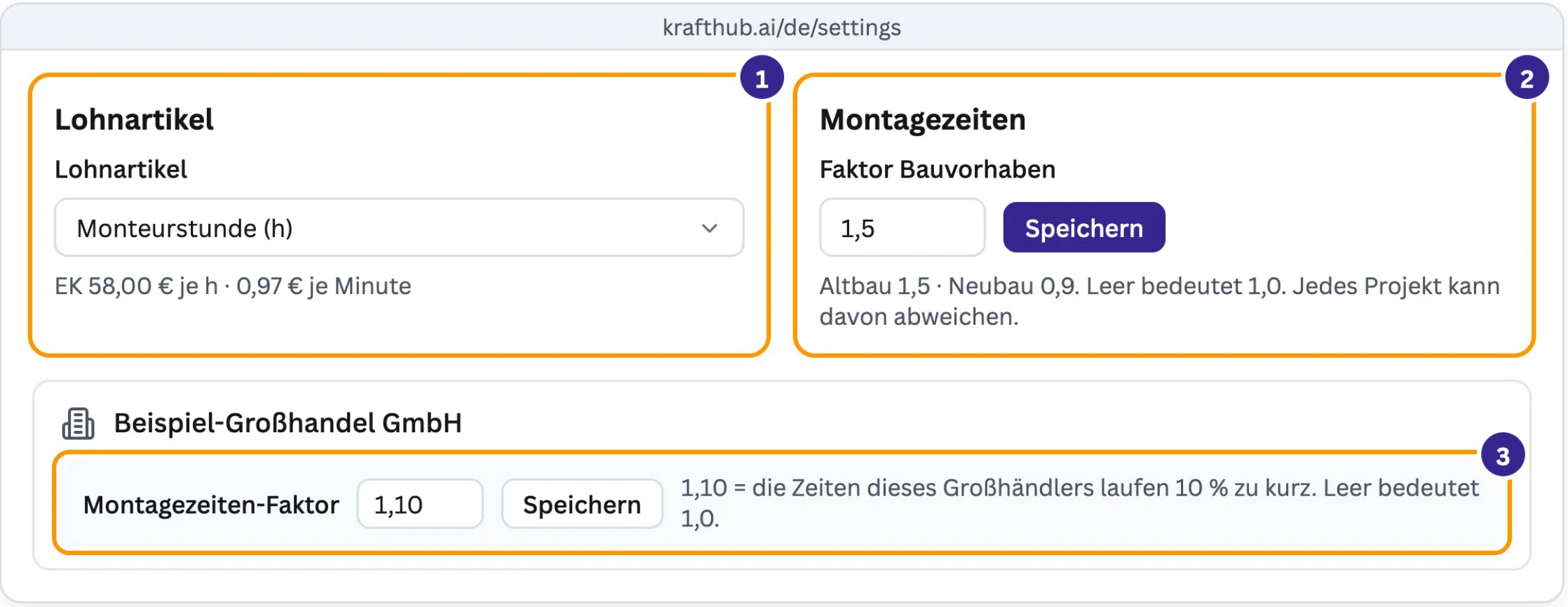
Set the labour article and factors
- Settings → Kalkulation: choose your labour in hours or minutes under “Lohnartikel”. Without a labour article you see the times, but without a price.
- Below, under “Montagezeiten”, enter the “Faktor Bauvorhaben”, e.g. 1.5 for refurbishment or 0.9 for new build. Every project can deviate from it.
- Settings → Lieferanten: after the import, the wholesaler shows its “Montagezeiten-Faktor”. 1.10 means its times are 10% too tight for you.
Use the installation times in a quote
- Open an item in the quote and add one of the wholesaler's articles in its “Kalkulation”.
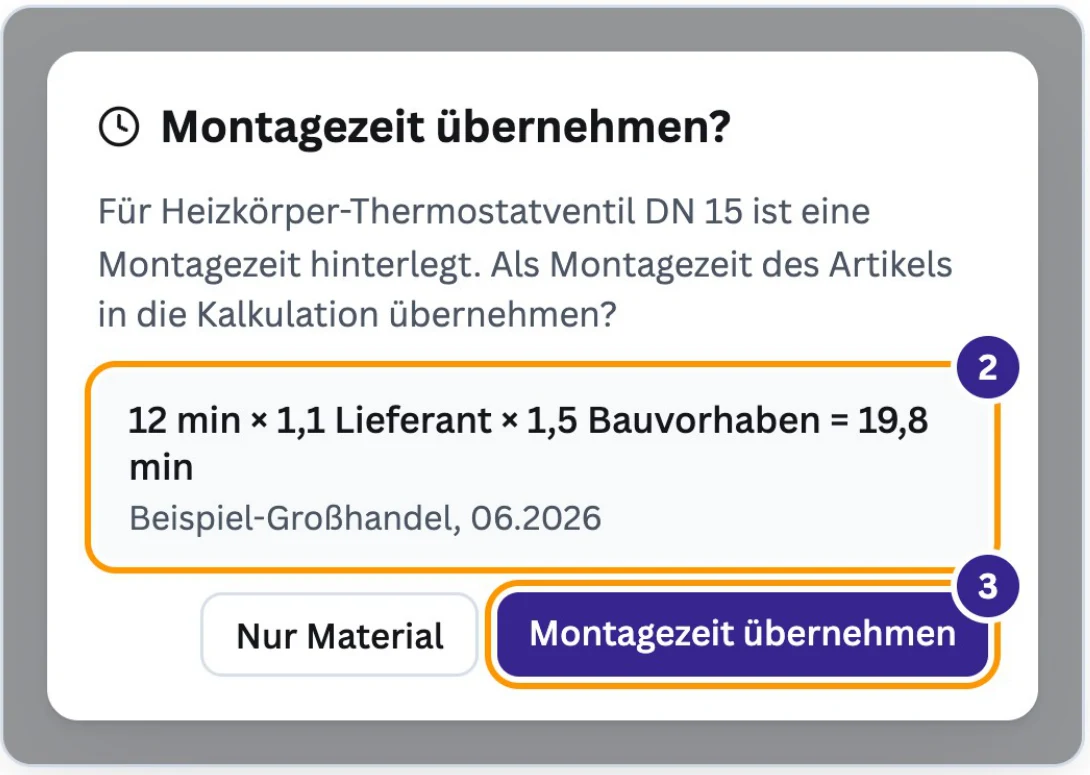
- KraftHub asks “Montagezeit übernehmen?” and shows how the time is made up.
- “Montagezeit übernehmen” brings the time with labour into the calculation, “Nur Material” only the article.
If you change the minutes by hand, your time stays; “Zeit zurücksetzen” brings back the wholesaler's time. An installation time stored on the article itself takes precedence over the wholesaler's – in tenders (GAEB) too.
Before and after
| Without the interface | With KraftHub |
|---|---|
| Guess the installation time per item | Bürgerle time by article number, priced with your labour rate |
| Add a refurbishment surcharge in your head | Project factor for the business, different per project if needed |
| Compensate for a wholesaler's tight times | Installation-time factor per supplier |
| Maintain new times by hand | Import the new file from Bürgerle – it replaces the previous times |
Frequently asked questions about installation times
Set up installation times?
We set up the import with you – with your installation times from Bürgerle, in one appointment.
Other interfaces
IDS-Connect
Search your wholesaler's shop and pull the cart straight into the quote.
Open Masterdata
Article data, prices and availability straight from the supplier's system.
DATANORM
Load and maintain a supplier's complete article catalogue as a file.
GAEB
Import a bill of quantities, price it and return it priced.
MCP
Let your own AI assistants work with KraftHub data — controlled and revocable.